
Tutorial: Bookdog 2.3.9
- Article 21 of 89
- MacFormat, June 2006
We’re going to learn how to sort, manage and fix our Safari bookmarks with Bookdog
Ever since the Internet got larger than about five pages, we’ve needed bookmarks. Sure, Google makes it easy to find most sites, but there’s always some that don’t show up in a search or are private. Then there’s Safari’s RSS feature which allows you to see whenever a site has some updated content. You can’t really use that without having some bookmarks.
The trouble with bookmarks is that once you’ve bookmarked a few pages, you soon begin to have problems finding the ones you were after. Is that “Home Page” bookmark your home page or Apple’s? You have to open it to find out. Then there’s the problems browsers cause by not alphabetising bookmarks. “Aardvark Adventures” could be after “Zoom Zoom Zoom” in your list of 80-odd bookmarks, depending upon which one you bookmarked first.
Browsers do try to help this organisation nightmare. Safari has a built-in bookmark manager that allows you to rearrange your bookmarks, plus it lets you file them into folders – either the built-in “Bookmark Bar” and “Bookmark Menu” folders or ones of your own devising. But there’s still no built-in sorting and folders bring with them their own problems: it’s quite easy to bookmark the same page in different folders or for you to forget exactly which folder you stored a bookmark in.
As if all that organising wasn’t enough, there’s another problem with bookmarks – they’re always the same. The trouble is, the web changes all the time and web sites shut down or rearrange their pages, meaning bookmarks can quickly become out of date. The first you’ll know about it is when you select that bookmark and it takes you precisely nowhere at all.
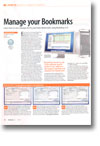
Thank goodness for Bookdog. It’s another one of those handy “how did I ever live without it?” utilities you come across from time to time. Bookdog lets you finally get a grip on your Safari bookmarks without very much effort at all. It’ll sort your bookmarks and bookmark folders alphabetically in just a second or two. You can customise that sort so that particular bookmarks or folders appear in particular places or you can just let Bookdog do its thing. Next, it can analyse your bookmarks to see if you’ve accidentally duplicated any, either in the same folder or in different folders.
Its last and perhaps most powerful feature is the ability to search all your bookmarks, look them up on the web, then check to see if they need to be brought up to date. It can do that by checking to see if the web site would redirect you, tell you the page is missing or if the whole site has gone; it can either rewrite the bookmark automatically or get you to tell it what to do.
In this tutorial, we’re going to show you how to use the basic features of Bookdog that will get your bookmarks into shape in next to no time. All you need is Safari and Bookdog. There are other features, though, that you’ll be able to explore for yourself using the copy on this issue’s CD. We’re sure you’ll be surprised by just how useful Bookdog can be.