

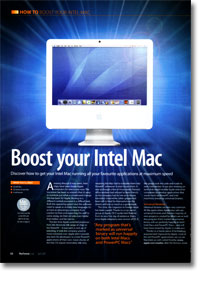
Boost your Intel Mac
- Article 35 of 89
- MacFormat, March 2007
Discover how to get your Intel Mac running all your favourite applications at maximum speed
Amazing though it may seem, Intel chips have been inside Apple computers for over a year now. It now seems the most normal thing in the world for a Mac to use an Intel processor. The transition has been so smooth, it’s easy to overlook just what a complicated change this has been for Apple. Moving to a different central processor is an immensely difficult task. To work, both the operating system and the software need to speak an entirely new language: it’s as difficult as relocating a company from London to Paris and expecting the staff to come along to do their old jobs even better than before and be natives.
The last time Apple switched processor – from the Motorola 68k range of chips to the PowerPC – it was such a cock-up of planning, it took the company years to move everyone over. Apple didn’t provide any tools for developers to create PowerPC applications of their own. Great chunks of the Mac OS stayed obstinately 68k-only, meaning the Mac had to translate them into PowerPC whenever it tried to run them. It was as though a few of those newly Parisian office workers had refused to learn French, so the company had had to hire an in-house translator; meanwhile, other groups had been left to fend for themselves on the streets without so much as a guide book.
This time, the migration to foreign lands has been much smoother. Thanks to a top-secret group at Apple, OS X spoke Intel fluently from its very first day of existence. Every time Apple released a new version of OS X, the group took the code and made its own Intel version. It was also working on tools that would enable Apple and other companies to develop applications that would work on PowerPC and Intel.
These “Universal Binaries” are now very common. All the applications Apple now sells are Universal Binaries and the vast majority of new programs created by other organisations and people are as well. Any program that’s marked as Universal Binary on the box or on its web site will run perfectly happily on both Intel Macs and PowerPC Macs – and has been tested by Apple to make sure.
Thanks to a handy piece of technology acquired and improved by Apple, most of the old PowerPC applications can run on MacIntels as well. Called Rosetta (www.apple.com/rosetta) after the famous stone used to decipher Egyptian hieroglyphs, this reads the old PowerPC code and translates it to Intel code, just like the old 68k emulator used to. However, this takes time and a great deal of memory, so these older apps run a whole lot slower on MacIntels. A PowerPC app on a G5 will zip past the same app running on a MacIntel and still leave plenty of room for other programs in memory.
Fortunately, it’s relatively easy for a developer to make their application a Universal Binary. Provided they’re using Apple’s XCode development tool, the program’s not too hefty and they’re not using anything too specific to the PowerPC, such as its Altivec graphics acceleration unit, they can usually just tick a box to make the app Universal.
So if you do have a MacIntel and you have some old, smaller programs, maybe shareware or freeware, it’s worth checking to see if a Universal Binary version is available. Many applications now have an update checker built in that can check over the Internet to see if a new version is available, whenever you run the program. You’ll typically find such an option under the program menu when it is running, in its preferences or possibly under the Help menu.
Bigger programs, such as Adobe Creative Suite and Microsoft Office, are not yet Universal Binaries. Mainly that’s because larger developers tend to use tools other than XCode, such as CodeWarrior, to develop Universal Binaries. Since CodeWarrior can’t create Universal Binaries – and probably never will – these unlucky companies have been having to migrate their software to XCode, a difficult task in itself, but one complicated by the fact that XCode just isn’t as handy as CodeWarrior when it comes to creating larger applications.
Smaller developers might well be in the same position. They could well have used RealBasic instead of XCode to create their apps, since it’s simpler and more user-friendly. But it’s only with the release of RealBasic 2007 that it’s been able to create Universal Binaries.
Both these groups of developers are making their way to Universal Binaries, but don’t be surprised if they make new releases and paid-for upgrades the only way to get Universal Binaries. Time costs money, after all. In particular, Microsoft Office will only become a Universal Binary with Office 2008 and Adobe Creative Suite with version 3 (CS3), both due out later in the year.
Then there is an unlucky third group of developers who have a technology that’s very hard to move over to Intel. Rosetta can’t translate embedded PowerPC Java code (see “Rosetta: What works?”). This sounds pretty esoteric and it is, but it’s something used quite frequently by companies that produce software for Windows, Macs and potentially other operating systems such as Linux. Writing code as embedded Java avoids much of the recoding necessary to get the software to work on all these different platforms. But for various reasons, it also makes it harder to take code written for the PowerPC over to Intel. Version 13 of the SPSS statistical package, for example, has been released quite recently, but will only run on PowerPC Macs – no Rosetta option here at all.
If you’re not sure if a program is a Universal Binary, there’s a quick way to find out – although you’ll probably have noticed it bounces in the Dock quite a few times if it’s a PowerPC application. If you select an application in the Finder and use the “Get Info” command, you’ll notice that under the “General” tab there’s a “Kind” entry that will say “Application” and then in brackets the type of application: PowerPC, Universal Binary, Intel and Classic. If it’s a Classic application, there’ll be a bar through the icon because you won’t be able to run it all on a MacIntel. The Intel option means it will only run on a MacIntel because it only contains Intel code and no PowerPC code. There will be a growing number of these applications as time goes on: developers will start to use tools that can only create Intel apps; some tools will be able to create applications that are either PowerPC or Intel but not Universal; and more and more developers will create applications that take advantage of features of the Intel chips that aren’t present in PowerPCs.
You can also tell if a program currently running is doing so in Rosetta using the Activity Monitor program in your Utilities folder. Launch it and use the “Show” pulldown at the top to highlight “My processes”. Then look for the Kind column: if it’s not showing, use the View menu’s Columns command to add it to the existing columns. If you’re running any Universal Binaries or Intel apps, they’ll show up as “Intel” in the Kind column; PowerPC-only apps will show up as “PowerPC”.
If you have a large number of programs, this can all take time. If you’re prepared to pay money for a service, VersionTracker Pro (http://www.versiontracker.com/subscribe/mactrial/) and MacUpdate Desktop (http://www.macupdate.com/desktop/) can scan your hard drive to determine which versions of which software you have installed; they then check to see if new versions are available. Even if a Universal Binary version isn’t available, there may be well be bug fixes and new features that make the update worthwhile.
If you don’t want to spend money, there are various “home brew” options that can speed things up. In particular you can run an AppleScript – a type of program you can create yourself – that will colour-code your applications by type to make it obvious what kind of program each one is. Read the first walkthrough for more details on how to do this.
As we’ve already hinted, Rosetta has its limits. There’s a whole list of things it can’t do, and types of software it can’t run, including drivers for printers and other kinds of hardware. In particular, Rosetta won’t run the PowerPC-only plug-ins of a Universal Binary. That means if you’re using Safari, Address Book or any program that uses plug-ins, you’ll need to look for Universal Binary versions of the plug-ins to be able to use them. There are far fewer of these, since XCode has no particular tools for creating Universal Binary plug-ins, making conversion very much harder, and frequently, Mac plug-ins are after-thoughts by Windows-friendly companies. Some developers, such as Mark/Space, have come up with clever workarounds. Mark/Space’s Missing Sync for Palm OS is a Universal Binary, but other than the ones it’s written itself, none of the Palm “conduits” used to sync Palm programs with their Mac equivalents are Universal yet. However, Missing Sync can still use these older conduits: it launches a separate program that runs invisibly in Rosetta to run these conduits and exchange their data with Missing Sync.
Sometimes, as with old PowerPC apps, the developers have stopped maintaining the program and there might never be a Universal version of the plug-in: Windows Media Player, for example, has been discontinued by Microsoft. In these situations, you’ll often have to look for alternative provider of the plug-in. Flip4Mac (www.flip4mac.com), for example, has Universal Internet and QuickTime plug-ins that can deal with many kinds of Windows Media files.
Again, VersionTracker Pro and MacUpdate (see “Getting your updates”) can come in handy when looking for updated plug-ins, since they can check for newer versions as well as more obscure add-ons, such as kernel extensions, contextual menu items, input managers and printer drivers that will also need updating.
If you really depend upon a plug-in but have updated to a Universal Binary, there is a way round the problem. If you Get Info on a Universal Binary, you’ll notice that there’s an option in the General panel: “Open using Rosetta”. If you check this option, the next time you run the program, it will open in Rosetta and be able to use its PowerPC plug-ins as well as a Universal ones you might have installed. Obviously, it’ll run a whole lot slower, too. If you only use the plug-in infrequently, as is usually the case with Safari, it might be worth duplicating the application in the Finder and setting one of the programs to run in Rosetta, leaving the other to run at full-speed when you need it, rather than constantly switching between settings. Hopefully, though, this will only be a short-term necessity as plug-in developers catch up.
The switch to Intel isn’t quite over yet, but we’re very nearly there. If you follow the tips in this article, you’ll be able to get the most out of your apps that you can at the moment. The rest of the year will see the last of the stragglers make their way over, if they’re ever going to come at all. Then you’ll see just how fast the new Macs can be, once the shackles that have been holding them back come off.