
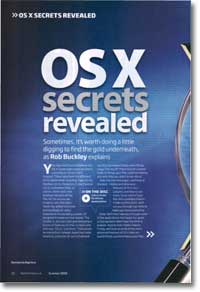
OS X secrets revealed
- Article 72 of 89
- MacFormat, July 2009
Sometimes, it’s worth doing a little digging to find the gold underneath
Page 1 | Page 2 | Page 3 | Page 4 | Page 5 | All 5 Pages
Hard to believe it but OS X is eight years old and is now on version 10.5 or Leopard. There have been six different OS Xs, before that, including Tiger, Panther, Puma and Cheetah, and before that, of course, there were nine previous versions of the Mac OS. So, as you can imagine, over the years, Apple has added hundreds and hundreds of useful features to its operating system, designed to make our lives easier.
The trouble is, you can’t just give everyone a great big list of features on their screens and say, “Go on. Use them.” That would be impractical to say the least. Instead, Apple has made simplicity and ease-of-use its hallmark and that inevitably has meant hiding some things away. The result? There may be a whole loads of things your Mac could be helping you with that you don’t know about.
Over the next few pages, we’re going to look at the best – and best hidden – features of Leopard, and how to use them. Since most of your Mac life is probably lived in the Finder and the Dock, we’ll run you through some top tricks to make you more productive there. We’ll then take you through some of the applications that Apple has given us but we don’t often have the time to explore, despite their hidden talents. Then finally, we’ll look at some of the more advanced features of OS X that can speed things up and enhance your Mac, not just for you but for everyone who uses it.
No matter what applications you run, the Dock, your desktop, and the Finder unite every Mac user. They’re what we all use every day and over the years, Apple has made them more and more powerful.
For most users, the Desktop is where they store everything they use frequently, so being able to see it is very important. Exposé (usually activated by launching Exposé in the Applications folder or through the keyboard shortcuts configured in the System Preferences pane “Exposé & Spaces”) allows you to page through the windows of all the applications or just your current application, but it also moves all the windows out the way so you can get to the desktop easily.
Spaces also allows you to expand your desktop into multiple areas. Activate Spaces in the Applications folder or by pressing F8 and you can switch between these areas, dragging files and folders to these separate spaces to keep them organised for particular activities, for example; alternatively, once you’ve activated spaces, you can simply drag the file or folder to a corner of the screen and wait - if there’s a Space next to the current one on that side of the screen, OS X will switch to the new one.
Even with Spaces to help, finding files can be tricky if you have many of them. Finder view options (View>Show View Options) lets you change the icon size of files in any folder, including the desktop, change the spacing between them, and get them to snap to a grid arranged by date, name or type of file. You can also sort by label, since you can give any file a coloured label using the bottom of the Finder’s Edit menu.
The Edit menu also gives you a few useful other functions: the ability to compress files and folders into zip archives; the ability to duplicate anything; the ability to create ‘aliases’ of files and folders, which act as proxies for operations like double-clicking and opening, that you can drag around and store in more convenient or useful locations; ‘Show Original’ which reveals which file an alias is pointing to; you can add files, folders and other objects to sidebars in windows if they’ve been selected; ‘Get Info’ on a file or folder to find out more about it; and ‘Open with’ so you can choose which program will open a file you’ve selected.
What appears in a Finder window is also customisable. There is a path bar available (View>Show Path Bar) to show you where a file is in your hard drive using breadcrumbs. You can hide both the toolbar and the sidebar by clicking in the lozenge in the top right-hand corner, and the toolbar is even more customisable than the sidebar: you can set it to use text as well as icons or just text; and you can change or reorder the icons that appear in the toolbar.
The key to this is the “contextual menu”, which you can get hold of by holding down the Ctrl key when you press click your mouse button - you can also get it on a new Mac with a trackpad by putting two fingers on the trackpad and clicking the mouse button. The contextual menu is so-called because it gives you access to functions depending on when and where you click. So if you click on the toolbar, you’ll get options to customise it; if you click on a file, you’ll get options such as “Move to trash”, “Compress” and “Open”. To keep it short and sweet, there’s also a “More” option, since programs you install can add extra contextual menu items to the list: so Stuffit will install a menu item that lets you explore zip archives without decompressing them, ClamXav will let you scan an individual file you’ve selected, Toast will let you burn a disc and so on.
Page 1 | Page 2 | Page 3 | Page 4 | Page 5 | All 5 Pages