
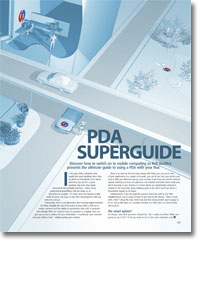
PDA superguide
- Article 8 of 53
- iCreate, August 2004
Discover how to switch on mobile computing as Rob Buckley presents the ultimate guide to using a PDA with your Mac.
Page 1 | Page 2 | Page 3 | All 3 Pages
In the “Year of the Laptop” (© S. Jobs), why would you need anything other than an iBook or PowerBook to be wired wherever you go? It’s a good question, but ever since Apple released its first portable machine – which many professional powerlifters still use today as an alternative to weights – it’s been clear that laptops simply make it easier, not easy, to take files and programs with you wherever you go.
Fortunately, there is an alternative: the Personal Digital Assistant (or PDA). Roughly the size of the palm of your hand, a PDA has a screen, memory and the ability to synchronise data with a computer. Even though it’s nowhere near as powerful as a laptop, it can give you access to almost all your information – in particular, your calendar and your address book – without giving you a hernia; there’s no start-up time to worry about; you can access any of your applications in a couple of seconds; you can fit it into your pocket and carry it with you wherever you go; you can take it out from your pocket without anyone noticing you have an expensive, nickable electronic device with you; and if you drop it, your chances of a heart attack are substantially reduced relative to the inevitable sharp stabbing pains in the chest you’ll get when a PowerBook topples to its doom.
Unfortunately, if you do begin the journey down the path to true PDA enlightment, you’re going to have to get used to the phrase, “Does it work with a Mac?” along the way. And if you pick the wrong model, you’re going to be as cool as Bill Gates in a woollen sweater at a roller disco. So tread wisely and read on.
As always, your first question should be: “Do I really need this? What am I going to use it for?” If all you want to do is take your calendars and contacts with you and you can afford it, buy an iPod. They’re cool, can play lots of music and can store all your information and a little bit more using iSync or some third-party software.
If you want to be able to alter or add to that information, however, you’re going to have to look for something more. The next step up from the iPod is a “smartphone”. This is the same as a regular phone but with some computer-like programs – usually email, a calendar, a browser, and an image viewer. Importantly, you can make changes to calendars and contacts on your phone and they’ll be updated on your Mac the next time you synchronise them. Best of all, you can download and install additional programs from a PC or Mac, including some trusty Mac favourites such as Opera, RealPlayer and Acrobat Reader.
A smartphone may be enough for you and is a good alternative to a PDA. Even if you have a PDA as well, you might not want to take two devices with you all the time and having some of your data with you is better than none. Nevertheless, they do have quite a few failings. Since they’re smaller than PDAs, they have smaller screens so it’s harder to read things on a smartphone than it is with a PDA. Most have few keys to enter data with, so if you think writing text messages on a phone is hard enough, wait until you’ve tried composing an email on one.
The final area where smartphones fall down compared with PDAs is in software and synchronisation. Since smartphones have only recently appeared on the market, there are relatively few people with each variety of phone. As there are even fewer people willing to pay for new software for phones, there aren’t many programs out there. Many types of application would be unusable on the average smartphone anyway (anyone want to edit a spreadsheet on a 160-pixel wide screen?).
More important is the issue of synchronisation. While smartphones will happily synchronise contact and calendar information with Address Book and iCal, very few of them will synchronise that information with Entourage or Now Contact, for example. Other information won’t be synchronised at all. So, if you do upload a Word document onto your smartphone, by some miracle find a piece of software to open it and then don’t go blind from actually trying to read it, you’ll still have to manually upload it onto your Mac again and then synchronise any changes you’ve made with the original document (if that’s even possible).
It’s the amount of software and the ability to synchronise information that really makes a PDA a worthwhile purchase. PDAs have access to thousands of programs written especially for them, including games, business applications, databases, spreadsheets, word processors, dictionaries, shopping list programs, fitness trainers, language tutors, web browsers, wine advisors (!), guidebooks, maps, route planners and restaurant guides. Many can exchange information with Mac programs automatically during synchronisation and, when they don’t have Internet connections of their own, use your Mac’s to download data.
If you decide on a PDA rather than one of its less powerful cousins, it’s time to pick an operating system. While generally Macs use Mac OS X and PCs use Windows, PDAs divide into those that run the Palm OS and those that use the Pocket PC OS.
Page 1 | Page 2 | Page 3 | All 3 Pages