
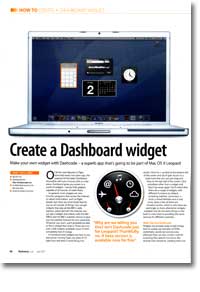
Create a Dashboard widget
- Article 38 of 89
- MacFormat, March 2007
Make your own widget with Dashcode - a superb app that's going to be part of Mac OS X Leopard
Page 1 | Page 2 | Page 3 | All 3 Pages
Of all the new features in Tiger, launched nearly two years ago now, the surprise hit has been Dashboard. Accessible with just a mouse click or a key press, Dashboard gives you access to a world of “widgets” – handy little gadgets capable of all manner of useful feats.
In general, most widgets are one-function gadgets that access the Internet to obtain information, such as flight information, but there are other kinds that let you do all manner of things. You can get widgets that play all the BBC’s radio stations, streamed over the Internet; you can get a widget that checks with the Met Office and the BBC’s weather service to give you the weather forecast for your postcode. Whatever you want, you’ll probably be able to find a widget that does it. There are now over 2,000 widgets available, most of them completely free of charge.
If Dashboard and widgets are new to you and you’re running Tiger, just press F12 right now and they’ll come flying into action. Click the + symbol at the bottom left of the screen and you’ll gain access to a load more that you can just drag and drop to the top half of the screen. Click anywhere other than a widget and they’ll go away again. You’ll notice there’s a range of widgets with different functions, by default, including weather, conversion, a clock, a virtual rolodex and a load more. Quite a few of them are Americo-centric, which is why there are seemingly so many alternative widgets available that do the same things as the built-in ones: they’re providing the same services for different countries.
Widgets are actually quite simple things: they’re usually just bundles of HTML, stylesheets, JavaScript and pictures, although they can also contain code for accessing Mac-specific functions. But despite their simplicity, creating them has typically been developer work. All that’s about to change, thanks to two new features in Leopard: Web Clip; and Dashcode.
Web Clip adds a new button to Safari: “Open in Dashboard”. This takes the page that you currently have open, launches Dashboard and creates a widget from the page. You can resize it, focus on part of the page, choose from one of several looks and then save the widget for use later. Then, whenever you bring up Dashboard, you’ll be able to view that page in your new widget. If you have a .Mac account and more than one Mac, you’ll be glad to hear that Leopard will synchronise your Dashboard settings and widgets between Macs, so you’ll be able to use your new widget, automatically, on any of your other Macs.
Being able to view a web page is quite a limited use of Dashboard though. Ideally, if you’re of a mind to create your own widget, you’d like to be able to make them do all manner of things, like read RSS feeds, give countdowns, do pretty graphics, monitors things, or plays podcasts or photocasts. That’s where Dashcode comes in. It’s like XCode, Apple’s built-in development environment, except for the rest of us. It’s designed to be easy to use – well, most of it anyway – just requiring a few simple operations to get a widget up and running.
Why are we telling you this? It’s just for Leopard, isn’t it? Thankfully, no. A beta version of Dashcode is already available, it’ll run on Tiger and you can download it for free.
To get hold of it, you’ll need to sign up to Apple’s Developer Connection (http://developer.apple.com). Despite its name, you don’t actually need to be a developer to join. If you’re not interested in getting advance versions of OS X on DVD, it’s also free. In fact, if you’re interested in getting the latest versions of Apple’s technical software, you should join anyway, even if you’re not interested in Dashcode, because you can download XCode upgrades and other tools as well.
Once you’ve signed up, you’ll be able to download Dashcode from http://developer.apple.com/tools/dashcode/. It’s a 19.4MB download, so you’ll probably need a broadband connection to get it, unless you’re very patient.
It’s worth mentioning at this point that since it is a beta, you’ll have to make a few allowances. For one thing, since you’re running it on Tiger, not all the features available in the Leopard version of Dashcode are going to be available in this version. Secondly, Apple would really like you to buy Leopard, so Dashcode will stop working after July 15, although any widgets you make with it should carry on working just fine after that. Lastly, there are a few bugs, here and there, that Apple will hopefully squash before the final version emerges so don’t forget to save your work frequently and keep back-ups. Apple is already aware of quite a number of bugs and if you plan to use Dashcode much and intensively, you should read Dashcode’s accompanying release notes, just to see if any affect you. In particular, things like Dashcode’s “Regenerate” button (see box out) and “Undo” don’t work quite the way they should at the moment.
Page 1 | Page 2 | Page 3 | All 3 Pages