
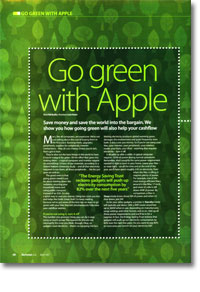
Go green with Apple
- Article 34 of 89
- MacFormat, February 2007
Save your money, save the world. Rob Buckley shows you how going green will save you cash.
Page 1 | Page 2 | Page 3 | All 3 Pages
Computers are expensive. We’re not just talking about the cost of buying them in the first place. Running them, upgrades, peripherals, supplies for peripherals, Internet connections: they all cost money. Unless you’re rich, that’s got to hurt.
They’re also not the best things in the world to have if you’re trying to be green. All the effort that goes into making them – a typical computer and monitor require an astonishing 1.8 tons of raw materials, according to a United Nations University study – all that electricity required to run them, all those supplies for the peripherals… Hang on, these lists are starting to look the same.
That’s no coincidence. The good news is that going green needn’t just be about turning down the radiators, recycling your household waste and using public transport instead of an SUV. It’s also about saving you money. Using less costs you less and helps the Earth. Great, huh? So keep reading: we’re going to show you some great tips on the best ways to go green with your Mac that will simultaneously save you money.
If you’re not using it, turn it off
The number one greenest thing you can do is stop using so much power. The reasons for this are not necessarily the ones you think though. Okay, so gadgets need electricity – there’s no escaping the fact. Making electricity produces global warming gases, damages the environment and quite frequently does both. It also costs you money. So if you’re not using your Mac, your monitor, your peripherals, your wireless router, your hubs, your iPod – anything that requires electricity – turn it off.
It all adds up after a while. A typical computer requires 100W of power during normal operations. Remember, that’s roughly the same power requirement needed to light a room in your home. Leave your Mac – or main light – on all the time and at the end of the year, you’ll have spent roughly £45 on electricity. Even when the Mac is idling, it requires plenty of power: one of the most energy efficient Macs around is the iMac 17“ and idle, it still draws 44W of power. By comparison, a Mac in sleep mode draws about 4W of power and when it’s turned ‘off’, 3W.
As for your other gadgets, a printer in stand-by mode will typically use about 10W; a WiFi router anywhere between up to 300W when in use, depending on manufacturer, range settings and other factors; and so on. Add up all those power requirements and you’ll be in for a surprise. In fact, the Energy Saving Trust reckons that gadgets will push up our electricity consumption by 82% over the next five years. Do you want to pay 82% or more extra per month on your electricity bill? Electricity prices aren’t going to do much except increase in the future, so the problem is set to get worse.
Even if that all seems a trivial saving, buying new equipment is undeniably costly. Turning off your equipment when you’re not using it makes it last longer. Most gadgets are rated to last for a certain amount of time: a ”mean time before failure“ (MTBF). Hard drives, for example, tend to have a MTBF of a few years. If you use your hard drive less often by spinning it down when it’s not in use, you’ll use up less of that MTBF. That means you might be able to postpone indefinitely the day when you have to replace your hard drive. Factor in the time taken to get a replacement, the repair costs, potential loss of data because your backup wasn’t quite as up-to-date as it should have been, the time needed to restore from backup and so on, and you’ll see that reduced power consumption will save you far more than just the electricity costs in the long-run.
One of the good things about Macs is that you can automate them to do things you forget. Your Mac’s Energy Saver settings can help you clamp down on your Mac’s power usage. Reduce the time before the display gets switched off or the computer goes into sleep mode to the lowest level you can. Set your hard drives to sleep whenever possible. And if you’re in the habit of leaving your computer on at night, whether that’s because you’ve forgotten to switch it off or the office manager likes to back up the data when everyone’s gone home, use the Schedule button to get your Mac to turn itself off automatically at night.
Incidentally, one of the main reasons for hard drive failure is a build-up of heat. Less power usage also means less heat which means happier times in Summer. Not only will you have to spend less money on simply running your Mac, you can also avoid knock-on costs for fans and air conditioning.
Monitor your monitor
There are various levels of monitor evil. A CRT monitor draws roughly 100W when in use. Add that to the power requirements of your Mac and you can see you’ve doubled your electricity usage already, if not more. An LCD display needs only 50 or 60W, so they’re a far better choice if you have no need of a CRT’s capabilities; they also require fewer resources to make and are frequently cheaper.
Virtually all displays have power-saving modes: if they’re not in use for a certain period of time, they’ll dim or turn off the screen automatically. You can speed that process up using the Energy Saver system preference.
However, if you’ve activated your screensaver, forget all of that. The screensaver is the enemy of power-saving; as long as it runs, the screen can’t turn off and the display will draw the maximum power, which ironically, will make your display fail more quickly.
So if you’d actually like to save your screen, go to your Desktop & Screen Saver system preferences and switch the screensaver to activate ”Never“ or at a time after your display would be put to sleep by your Energy Saver settings.
Upgrade not replace
Although Apple will probably hate us for saying this, the best thing you can do to go green is not to buy a Mac. We’re not saying you should buy a PC. But at the very least, if you are thinking of buying a new computer – or any other piece of hardware - ask yourself: do I really need it?
As we’ve already pointed out, making a new computer literally takes tons of natural resources, plenty of carbon dioxide-producing electricity, and produces, despite many manufacturers’ best – and sometimes worst - efforts, pollution aplenty. Not getting a new computer will make you greener and save you a few hundred or thousand pounds.
So before buying, see if there’s any way you can upgrade your existing machine. More memory will make many a Mac seem faster and with 1GB of RAM coming in at less than £100 these days, it’s a far cheaper prospect than a new Mac. New processors, new hard drives, extra USB 2.0 and Firewire ports using PCI cards: they’re all great ways to make that Mac last for longer and they’re all pretty reasonably priced.
If you decide you do need a new Mac, the Mac mini is the cheapest and the greenest, since it has low power requirements, only has a small amount of packaging and doesn’t come with a keyboard, mouse or monitor by default. The Mac Pro? Not so much…
Pick a greener printer
Have you noticed how cheap printers are these days? That’s because the manufacturers sell them at a loss. Crazy, huh? Well, not really, because they then sell us the replacement cartridges at exorbitant prices, which is where they make a healthy overall profit. Print 30 colour pages of A4 a week and by the end of 18 months, you’ll probably have shelled out nearly £1,200 on manufacturers’ own-brand consumables.
The biggest guzzlers of supplies are inkjet and Bubblejet printers. If you buy one, it might be because you want to print photos. But you’ll actually save money by using an online service to develop your digital pics instead. Most black inkjet cartridges give out after 90 A4 pages, colour cartridges at 40 or so. At £9 or more per cartridge, you’ll be spending a fortune in comparison to the online option, and that’s even before you’ve found the photo paper necessary. Since the laboratories and systems used to develop your photos will be vastly more efficient than your set-up, thanks to economies of scale and centralisation, this will also be the greener option, particularly if you order in bulk, rather than in dribs and drabs.
Maybe you just wanted a cheap printer for printing documents. In the long run, you’ll actually be better off with a laser printer. You can buy a colour laser from about £175 including VAT, and even the most basic can print 1,200 pages before it needs new toner. If you consider that laser printers’ black toner cartridges cost from £50, you’ll clearly be paying a whole lot more for an inkjet, particularly if you mostly produce black and white output. Switch to a laser printer and not only will you spend a whole lot less money on consumables, you’ll be using up far fewer resources.
There are even greener options than a laser printer though. Xerox claims its solid ink blocks (www.office.xerox.com/solidink/index.html) can last for 30,000 pages before they need replacing, and that for every 100,000 pages printed, they’ll only produce 4.4 pounds of landfill waste in total, compared with the 198.4 pound generated by a colour laser printer. Kyocera Mita’s printers (www.kyoceramita.co.uk) use a photocopier-derived technology to make a more environmentally friendly cartridge altogether, with fewer parts that take the cost per page in consumables down to a mere 0.3p per page. Indeed, since their printers have been designed from the ground up to be as environmentally friendly as possible, they should always be near the top of your printer shopping list.
Save on paper and printing
What paper you use and how you use it can save you plenty of money. Using recycled paper is a no-brainer, particularly since it’s now as cheap or cheaper than regular paper. But most laser printers offer one especially useful trick than inkjets can learn from to: duplexing. In other words, they use both sides of the paper. Laser printers usually come with an automatic duplexer, but you can replicate the effect by, erm, feeding paper back through your inkjet printer the other way up: it’ll halve your paper requirements and cut down costs accordingly.
If your eyes are up to it, you can reduce your ink and paper requirements even further by printing more than one page per sheet using the Layout options in the standard OS X print dialogue. Set the Layout option to two or more pages per sheet and you can halve your paper and consumable requirements.
You should also try to reduce the amount you print, using the Preview option to make sure the final pages aren’t adverts or otherwise blank, and set quality output to low and black and white if you don’t need full colour: that’ll reduce your ink needs even further.
These tips are just the beginning. You can make many simple changes to your digital lifestyle that will save you money and help save the planet. Even if it doesn’t save you money, recycling used inkjet cartridges and packaging, for example, won’t cost you money. So do what you can: you know it makes sense.
Page 1 | Page 2 | Page 3 | All 3 Pages