
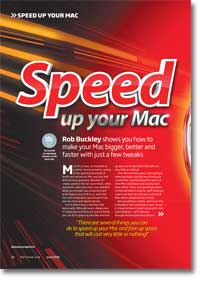
Speed up your Mac
- Article 71 of 89
- MacFormat, July 2009
We’re going to show you how to make your Mac bigger and faster with just a few tweaks
Page 1 | Page 2 | Page 3 | Page 4 | Page 5 | All 5 Pages
As you might suspect, ‘Applications’ should contain all your applications and ‘Users’ contains all of your files and the files of anyone else who uses your Mac. ‘System’ is sacrosanct and reserved for Apple’s use – as with the invisible UNIX folders, never touch the contents of ‘System’ unless you know exactly what you’re doing, or you risk making your Mac either very error-prone or unable to work at all. ‘Library’ is a catch all collection of files that your Mac and its applications need for extra functions, preferences, templates, desktop pictures, plug-ins and more.
Keeping all your applications in the Applications folder not only ensures that when it comes to removing applications you no longer need, you know where they are without ferreting around, it gives your Mac extra capabilities through its ‘Services’ menu, available from the program menu (so if you’re in the Finder, the menu called ‘Finder’); for example, if you use Skype, you’re able to highlight names or text in applications and call the Skype user with that name using the Services menu. If there’s more than one user on your Mac and you want to ensure only certain applications are available only to you, you can also create an Applications folder in your home folder and any programs you store there will be able to offer Services to other applications.
Your home folder is stored in the ‘Users’ folder, together with a ‘Shared’ folder that should be used for storing files that all users should be able to access: certain badly behaved programs also use it for storing preferences and other files. Normally, though, the Shared folder isn’t something that builds up too many files.
Instead, it’s the folders in your home directory that are the usual source of bloat. What with iTunes storing all its music and videos in the ‘Music’ folder, iMovie storing its files in the ‘Movies’ folder and iPhoto storing its library in the ‘Pictures’, you can pretty much be guaranteed that your home directory will have the bulk of the files on your hard drive before too long. However, like the Mac, you have a ‘Library’ folder of your own, which can also fill up pretty quickly as you use more and more applications.
Files, folders and packages
Everyone knows what a file is and that you can stick files inside but folders. But what’s a package? A package is a clever way in which OS X is able to make a whole load of files and folders appear as a single file to make it easier to move its contents about. The majority of OS X applications are packages and you can see this by right-clicking on one and choosing “Show Package Contents” from the menu.
Why is this helpful to know? Many OS X applications are ‘fat’ (run on Classic and OS X) or Universal (run on PowerPC and Intel Macs) binaries, or come in a variety of languages. To make life easier for users, developers stick all these varieties together into one package. However, that can lead to a waste of hard drive space; once you know what all the parts of a package do, you can remove the parts that aren’t appropriate for your Mac and save gigabytes of space.
Invisible files
OS X has plenty of clever tricks, some of you which it’s easy to forget – running UNIX applications, having different view options for every window, being able to store Mac files on Window disks, and so on. To do this, it stores a number of files all over your disks, but to save you from yourself and accidents – and to make everything prettier – Apple hides these files.
These files can build up over time and since some applications also create invisible files – and sometimes forget to delete them – it’s worth your while looking at these files to see if they’re worth keeping. The quickest way to show invisible files is with Terminal. Type ‘defaults write com.apple.finder AppleShowAllFiles 1; killall Finder’ and press Return; changing 1 to 0 will hide them again. In particular, .DS_Store files, which store window view preferences can quickly add up to megs of wasted space.
Freeing up space
So your hard drive is clogged up and you know what’s doing the clogging up. What now?
Depending on what the cause is, you can either delete files or move them if you have somewhere else to store them. Your Mac can almost certainly burn CDs and DVDs unless it’s very old: you can use the Finder to archive files you still want but don’t need on your hard drive onto disk, before you delete them from your drive. You can either do this by creating a Burn Folder using the Finder and dragging files to archive into the folder, or simply selecting a folder or file and selecting ‘Burn xxx to Disc…’ from the File menu.
Page 1 | Page 2 | Page 3 | Page 4 | Page 5 | All 5 Pages