
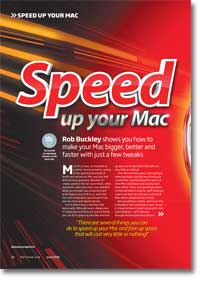
Speed up your Mac
- Article 71 of 89
- MacFormat, July 2009
We’re going to show you how to make your Mac bigger and faster with just a few tweaks
Page 1 | Page 2 | Page 3 | Page 4 | Page 5 | All 5 Pages
Since almost nothing still needs Classic or OS 9 these days, it’s usually a safe move to delete the ‘Applications (OS 9)’ folder if you still have it and ‘System Folder’: your Mac might object in the latter case, but you can override it by launching Terminal from your ‘Utilities’ folder in the ‘Applications’ folder, typing ‘sudo rm -R ‘ then dragging ‘System Folder’ onto the Terminal window from the Finder and pressing Return. This should free about 750MB of space when it’s done.
DVDs do take a long time to burn and you obviously need a decent cataloguing system if you’re to keep track of all your files. A quicker alternative that will give you immediate access to all your files is an external hard drive. Currently, you can buy a 500GB USB 2.0 external hard drive from most electrical stores for under £80, plug it into your Mac and it will appear on your desktop. Most come formatted as Windows NTFS drives, so you’ll need to re-format them first using Disk Utility to be able to use them. Once formatted, you then simply copy any files that are hogging space onto the drive and delete the original files from your Mac. Firewire drives are typically twice the price but will work at an acceptable speed with older Macs that don’t have USB 2.0. There are also ‘networked storage’ drives such as the Buffalo LinkStation that cost almost the same price as a USB drive but, have Gigabit ethernet connections so are as quick but can be available to all Macs on a network if you plug them into your router. You can make just about any external USB drive act as a networked storage drive by plugging it into an AirPort Extreme Base Station or Time Capsule.
Moving your iTunes or iPhoto libraries to an external drive is relatively easy. With iPhoto, just copy the ‘iPhoto Library’ file or folder from the ‘Pictures’ folder to the external drive then hold down the alt or option key when you start up iPhoto – you’ll be prompted to locate iPhoto’s library and you can choose the copy on your external drive. You can follow the same procedure with iTunes and its library, by copying the ‘iTunes’ folder in the ‘Music’ folder then locating the ‘iTunes Library’ file inside it when prompted by iTunes.
Deleting applications isn’t quite as easy. Many applications can be installed simply by dragging them into the ‘Applications’ folder, so you’d think uninstalling them completely would be as easy as dragging them to the Trash. However, many applications, on first launch, will create preferences in the ‘Preferences’ folders of your ‘Library’, may install more files into folders in your ‘Application Support’ folders in your ‘Library’ folders or directly into their own folders in the ‘Library’ folders. They might also create ‘caches’ – collections of files designed to speed up performance of applications – in your ‘Library’ folder’s caches folders. Other applications that use an installer can place files in many other places around your system. Typically, you’ll recognise which files and folders belong to which applications as you browse the Library folders since they’ll have the application or developer name in their title or enclosing folder title – if they don’t, try Get Info (Apple-I) on the file, since sometimes you’ll find copyright messages in the file information.
However, if the application came with an uninstaller, use that to delete the application rather than trying to do it manually. Equally, if you’re just trying to delete a single application, if it used a standard OS X installer package, you can find out what files it installed using Pacifist (http://www.charelessoft.com) or by running the installer again (see Quick tips 1 and 2).
Another option is Smith Micro’s Spring Cleaning (http://my.smithmicro.com/mac/springcleaning/index.html), which is an uninstaller application and file scanner. This can keep track of new files on your Mac, work out which files belong to which applications and let you look for particular kinds of files, such as movies, which haven’t been stored in the right places.
If you don’t want to delete an application altogether, it is possible to save at least some space by deleting some of its language files: OS X as well as many applications include duplicate files but in French, German and other languages. Applications such as Monolingual (http://monolingual.sourceforge.net) can delete as many languages from applications as you want, saving you potentially gigabytes of hard drive space – although some applications, such as Adobe Creative Suite, might stop working properly if you delete language files so it can be quite risky in some cases.
Speeding up your Mac
Your Mac’s memory or RAM is the biggest cause of performance issues. You need enough to run OS X and any applications you want to open. If the memory available isn’t enough, your Mac will use your hard drive for ‘virtual’ memory so that you can still run your applications. However, since the hard drive is much slower than real memory, performance will drop.
As a rule of thumb, the absolute minimum amount of RAM you should think of having for running Leopard with is 1GB, with 2GB for comfortable running, more if you can install more and you’re using programs like Adobe Creative Suite.
You can find out how much RAM you have installed in your Mac, by choosing “About this Mac…” from the Apple menu. If you have too little memory installed, go to http://www.crucial.com/uk/mac/index.aspx and download the Crucial System Scanner Tool, which will tell you what you have already and what you’ll be able to add, if anything.
Page 1 | Page 2 | Page 3 | Page 4 | Page 5 | All 5 Pages